Signalyst Help
Overview
Thank you for using Signalyst, a mobile app that provides relevant, real-time information to improve travel efficiency and safety. Signalyst connects drivers, cyclists, and pedestrians to transportation infrastructure, providing information before it can be seen from the road. It improves travel efficiency by providing traffic light and crosswalk information, including time-to-green countdowns and green light advisory speeds. It improves travel safety by notifying users of potential vehicle and pedestrian conflicts. It runs in the background and provides real-time updates based on anonymous location.
Using Signalyst
Signalyst is designed to be used by drivers, cyclists, and pedestrians, but only in a safe manner. If you intend to look at the display while driving, your phone should be mounted to your dashboard or windshield in a visible location. You should not hold your phone in your hand or lap, and should not touch the screen while your vehicle is moving. Otherwise, you can use the notification and audio features of Signalyst while it is running in the background. In addition, some data, including speed limits and signal timing predictions, may be incorrect, so you should always defer to road signs and traffic lights as the final authority.
The first time you tun the Signalyst app, you will be asked to allow Signalyst to access your location. You should select “Allow while using the app”.
Phone Requirements
Signalyst requires an Android phone running Android version 11 or higher. Signalyst also requires access to the Internet in order to retrieve real-time information based on your location. It will use your cellular data plan and may result in additional data fees.
Travel Mode
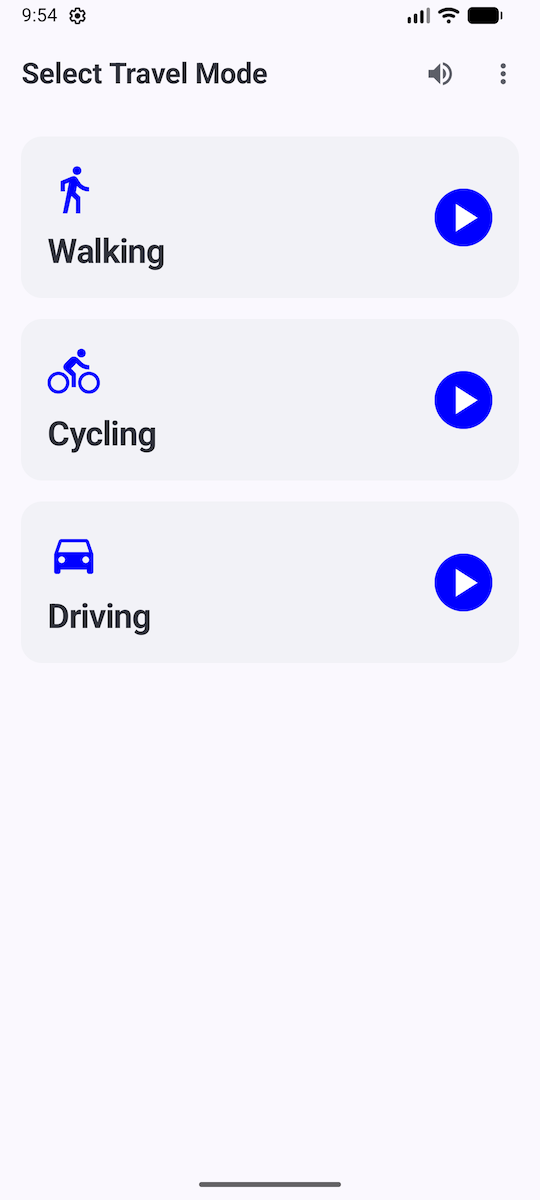
When you open Signalyst, you will be asked to select between Walking, Cycling, or Driving.
Select by pressing the blue play button next to your travel mode.
Your selection will be used to display appropriate traffic light or pedestrian signals, as well as appropriate safety warnings.
You can stop your travel session by pressing the button in upper left corner of the screen. To conserve battery life, you should stop your session after you’ve arrived at your destination.
You can access the menu by tapping the icon in the upper-right corner of the screen.
A speaker icon is shown next to the menu icon, and you can tap it to enable or disable audible announcements.
Driving and Cycling
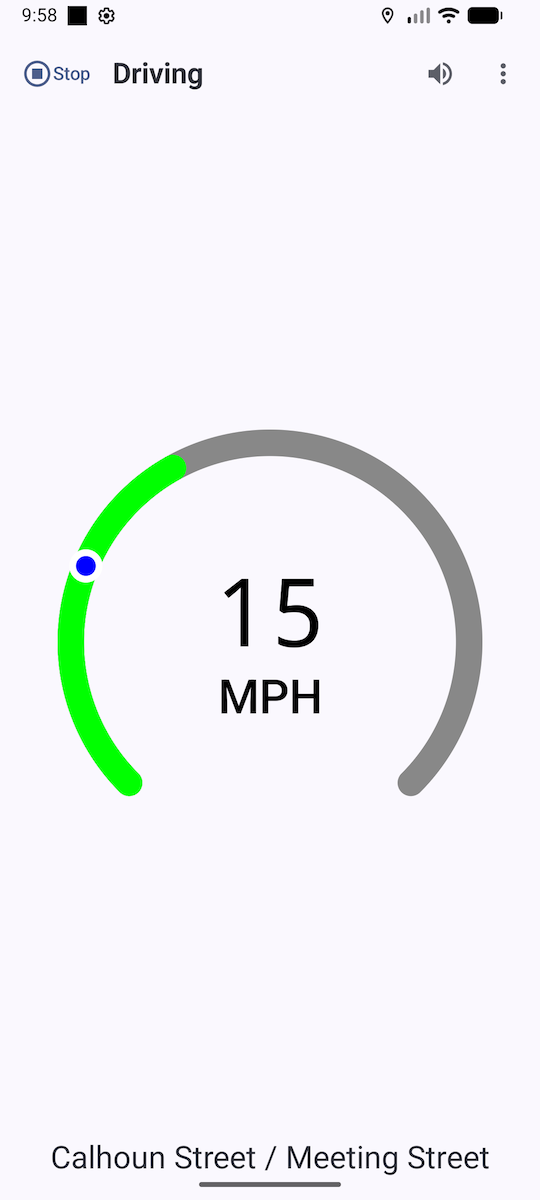
In Driving and Cycling modes, a speedometer displays your current speed with an orange ball.
When approaching an intersection, the street names will be displayed at the bottom of the screen. A green band indicates the range of speeds to arrive at a green light.
When there is a potential pedestrian conflict, the current speed will be replaced by a pedestrian warning icon inside the speedometer.
Red Lights
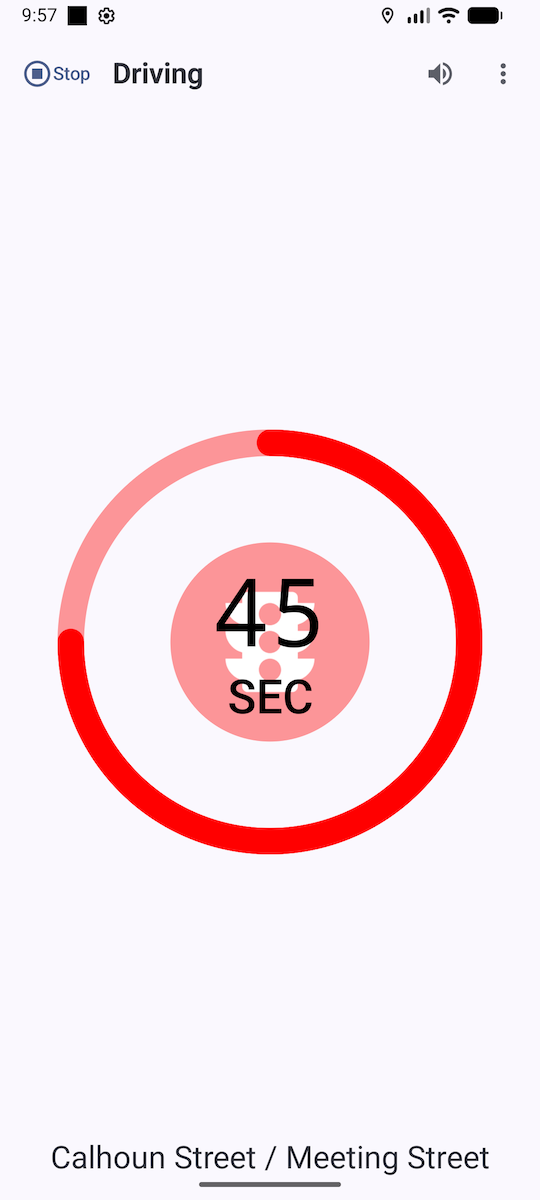
Red circles indicate the wait time for the next green light, with a one minute countdown timer that updates every second. You will see and hear an announcement approximately 10 seconds before the light is predicted to change.
Crosswalks
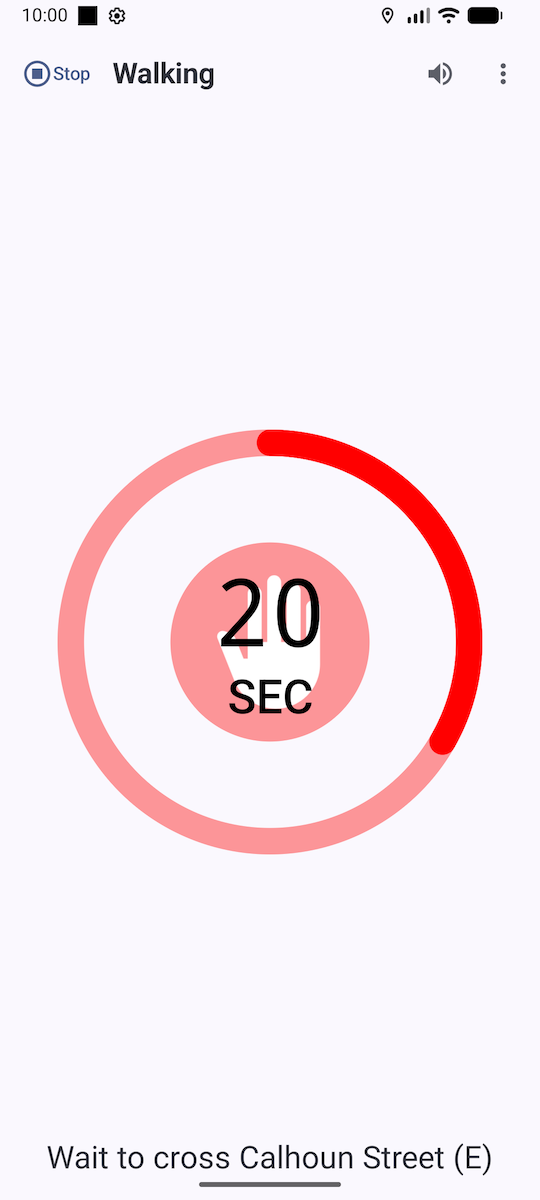
Red circles indicate the wait time for the next walk signal, with a one minute countdown timer that updates every second. The countdown timer will show the time for whichever signal is currently red (DON’T WALK).
Feedback
We would love to hear your feedback, which you can send to info@ceve.io. Your feedback (good and bad) on features, usability, and bugs is invaluable, so please don’t hesitate to mention anything.